Login
The SOC Platform Solution provides SOC Edge services. To use the service, users must first log in to the system.
Password Initialization
In cases where the administrator sends an email requesting password setup when creating a new user account, the user must follow these steps to initialize their password:
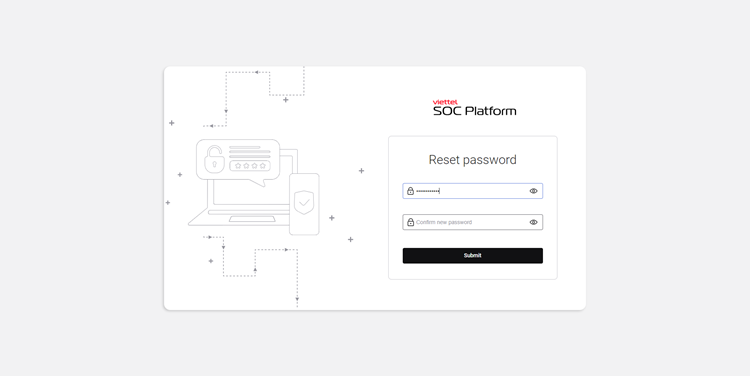
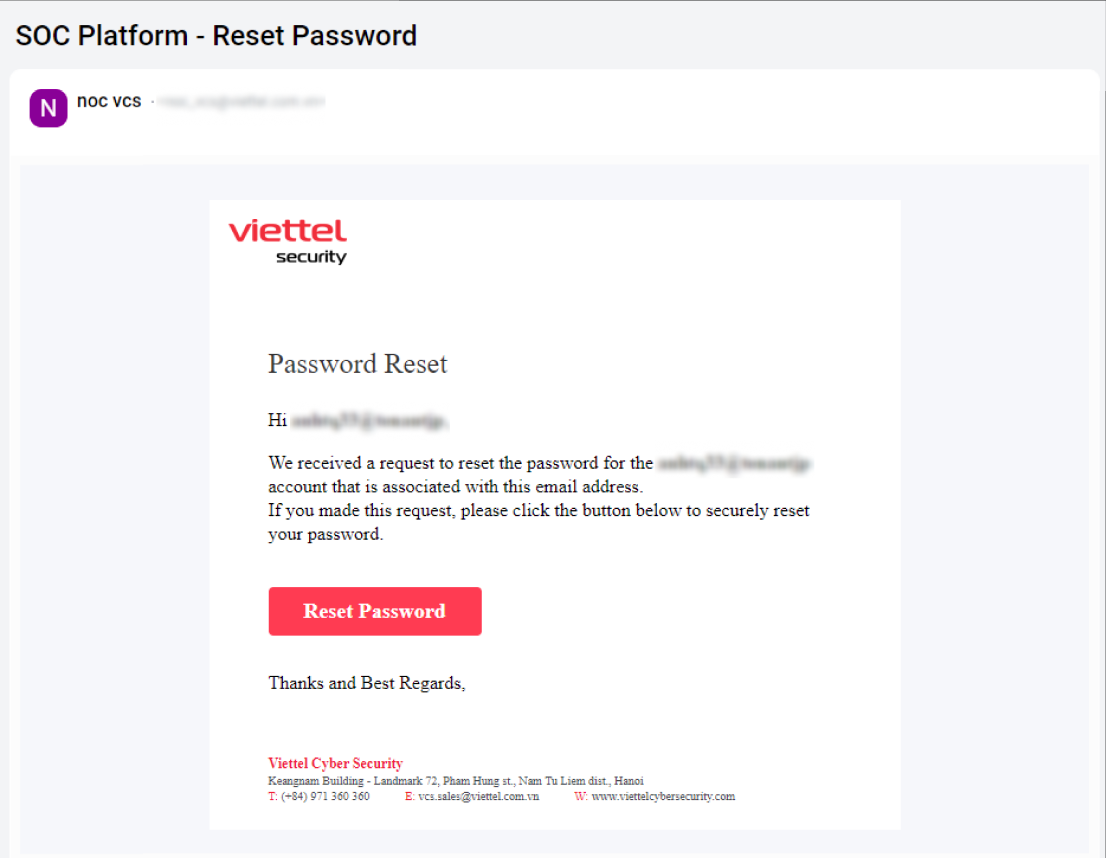
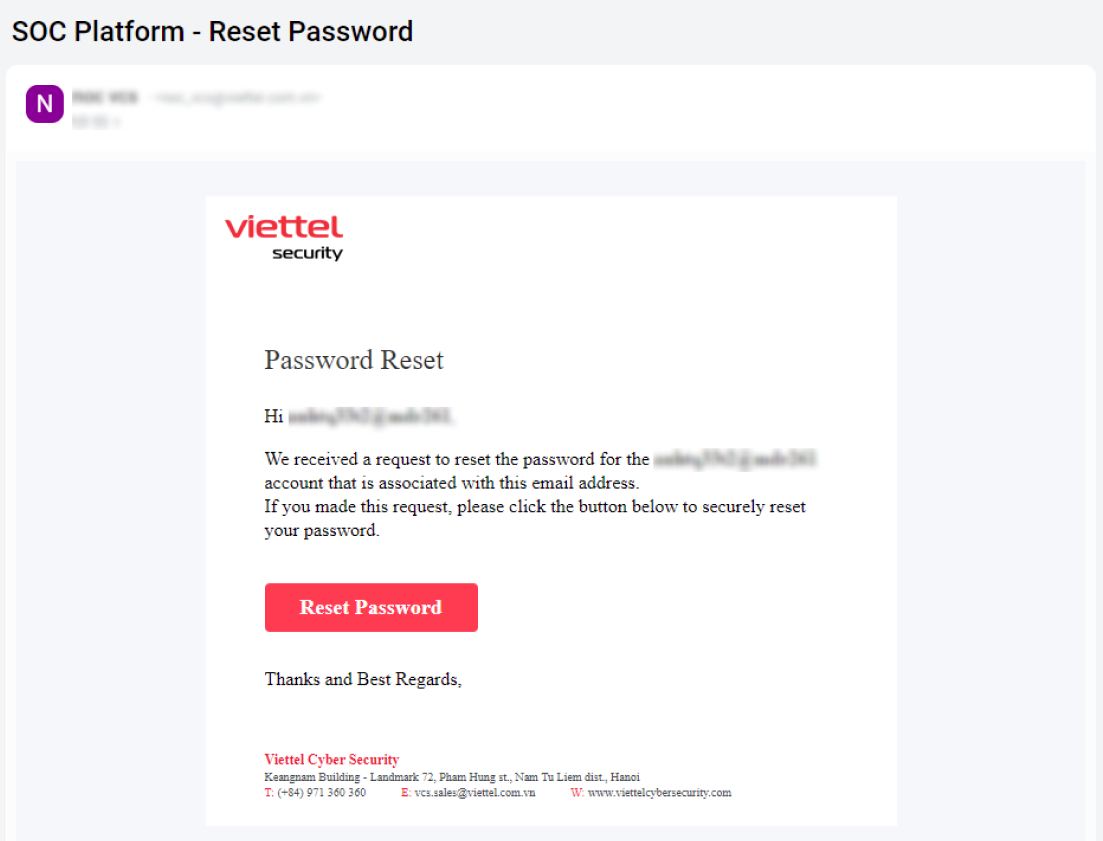
Step 1: The user should check their email for the "SOC Platform - Reset Password" message and click on the Reset password link. The system will redirect the user to a screen where they can set their password.
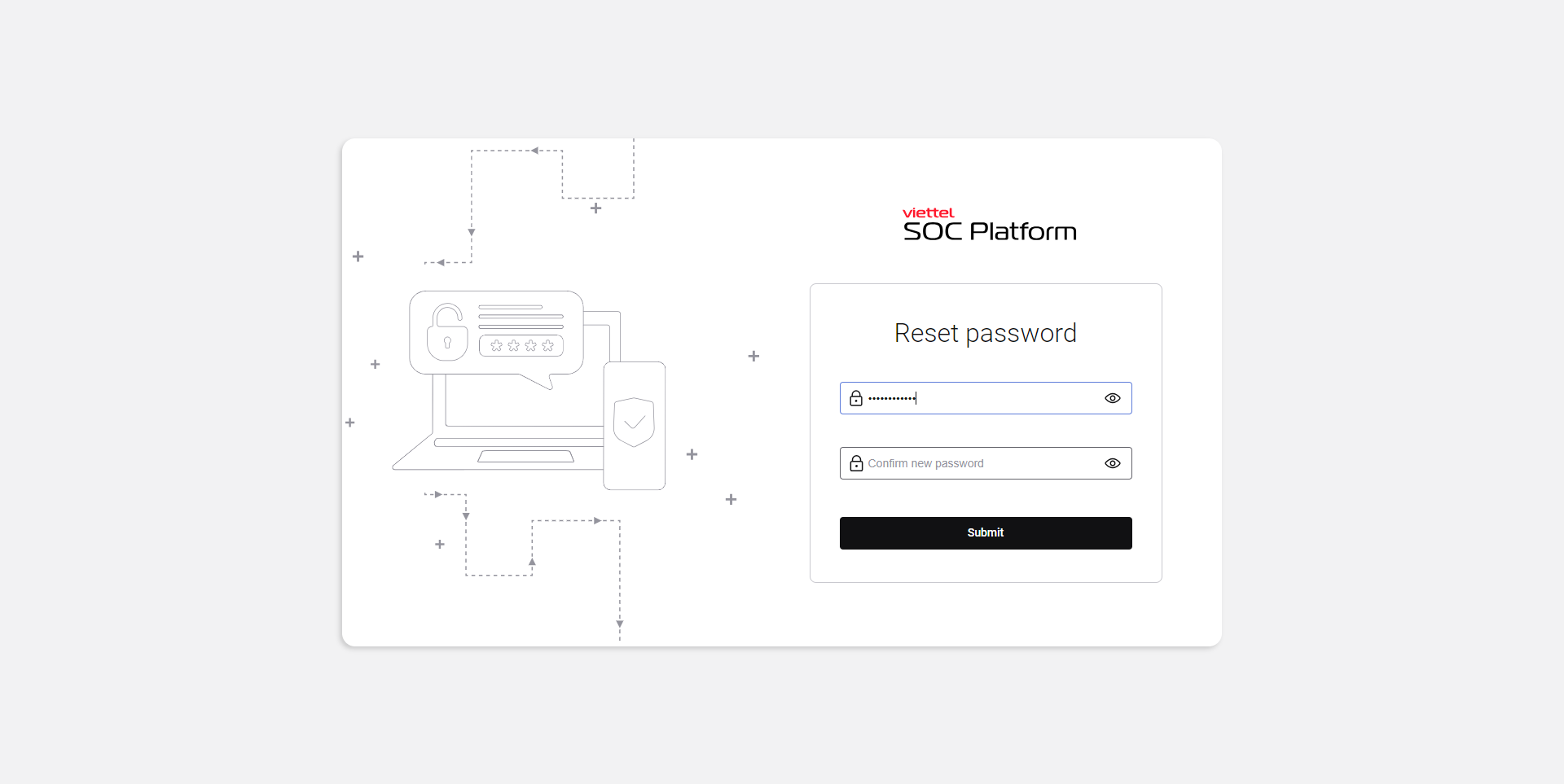
Step 2: The user must enter a new password following the system's password policy. Once the password is successfully created, the system will redirect the user to the Login screen.
Login
To log in to the system, users must follow these steps:
Step 1: Access the address: https://soc.viettelsecurity.com/
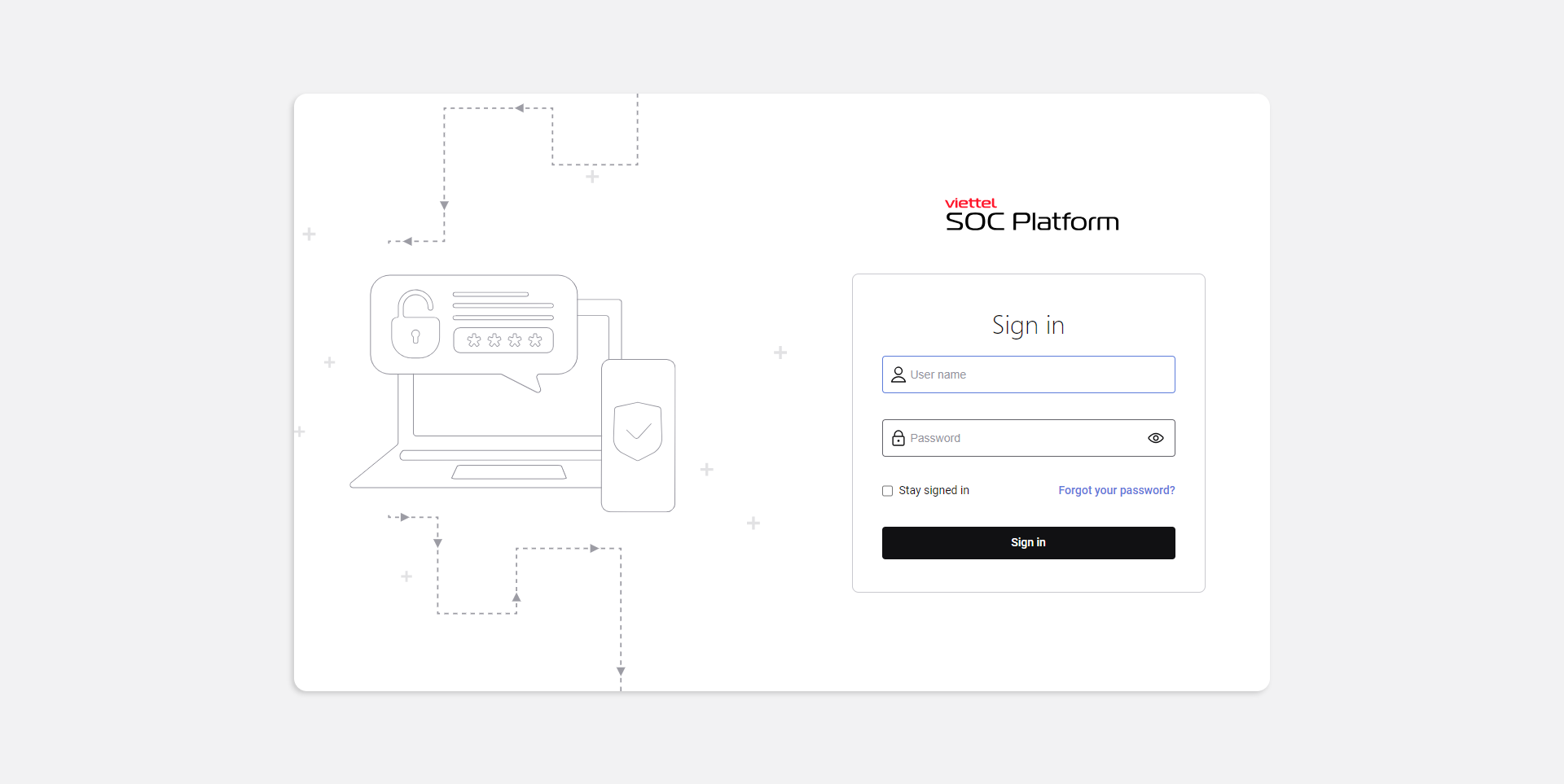
Step 2: On the Login screen, enter your Username in the format username@tenantId and your Password. Then, click the Sign in button.
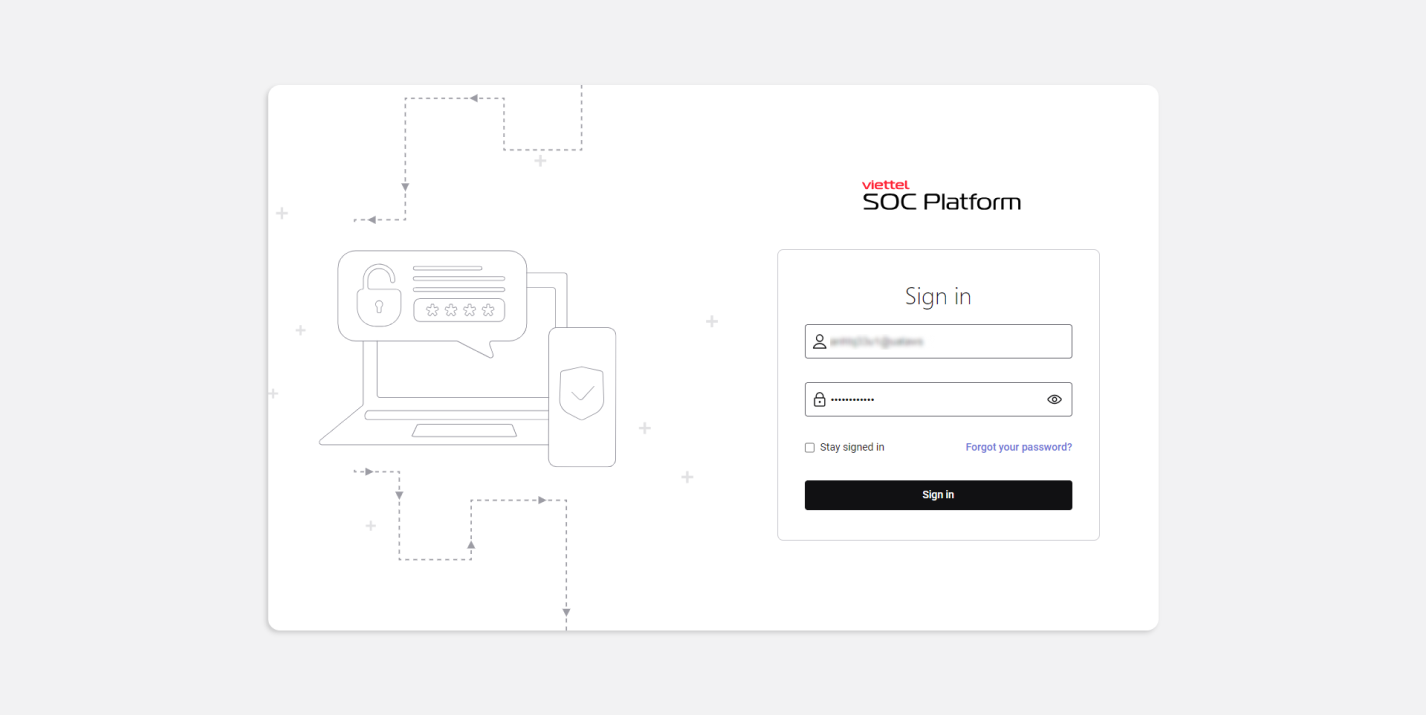
To prevent Brute Force attacks, the SOC Platform will require reCaptcha verification if a user enters incorrect login information more than 3 times.
If login attempts fail more than 5 times, the account will be locked. The user must contact the system administrator to unlock the account.
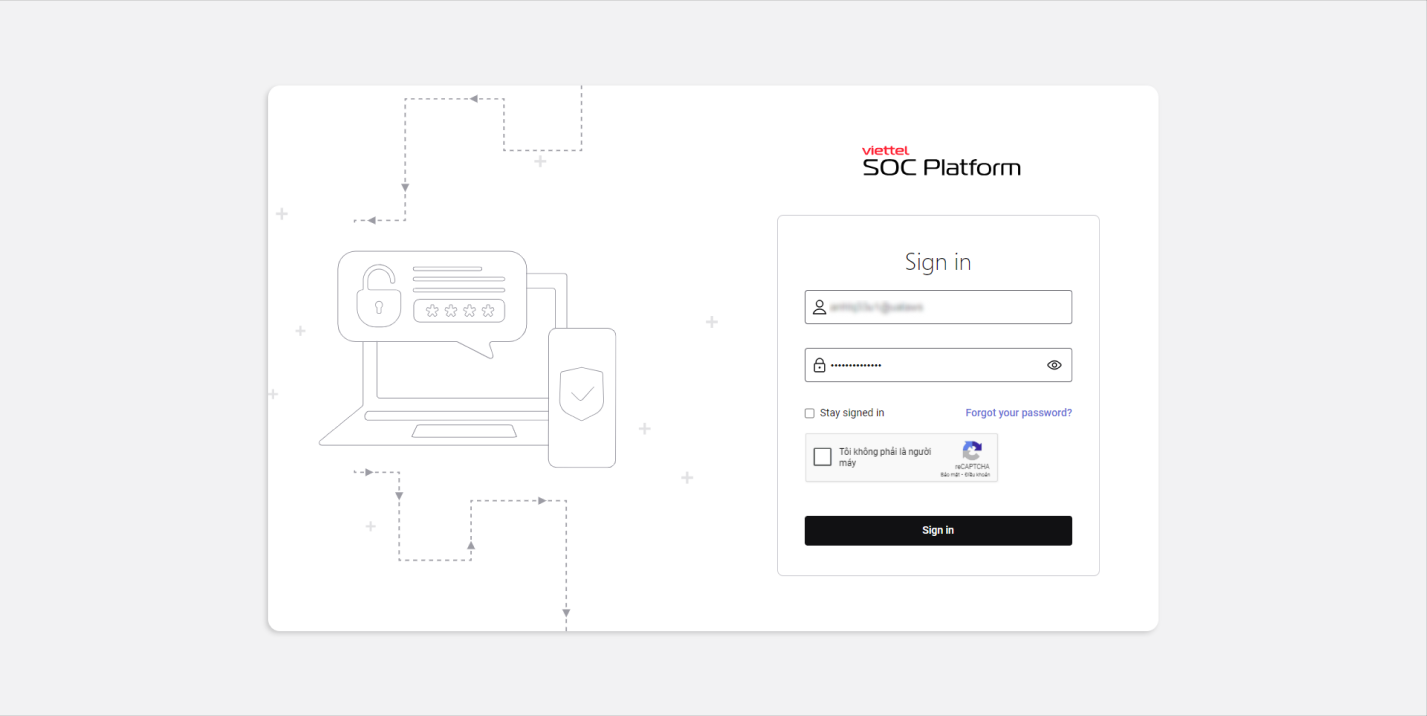
Users can check the Stay signed in checkbox to extend the session expiration time.
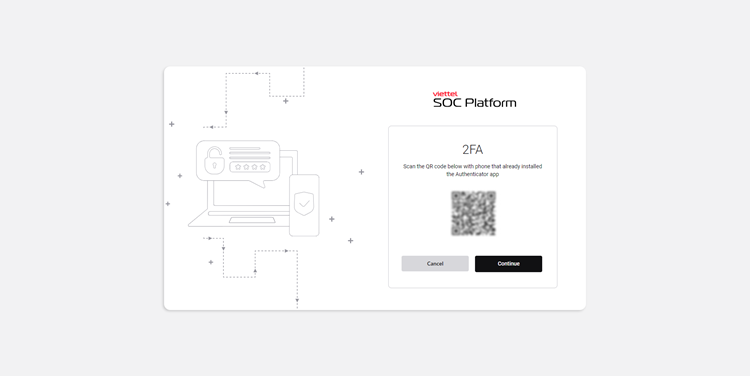
Step 3: For the first login to the system, users will be redirected to the 2FA screen. Users need to scan the QR code using a supported authenticator app. After scanning the QR code, click the Continue button to proceed.
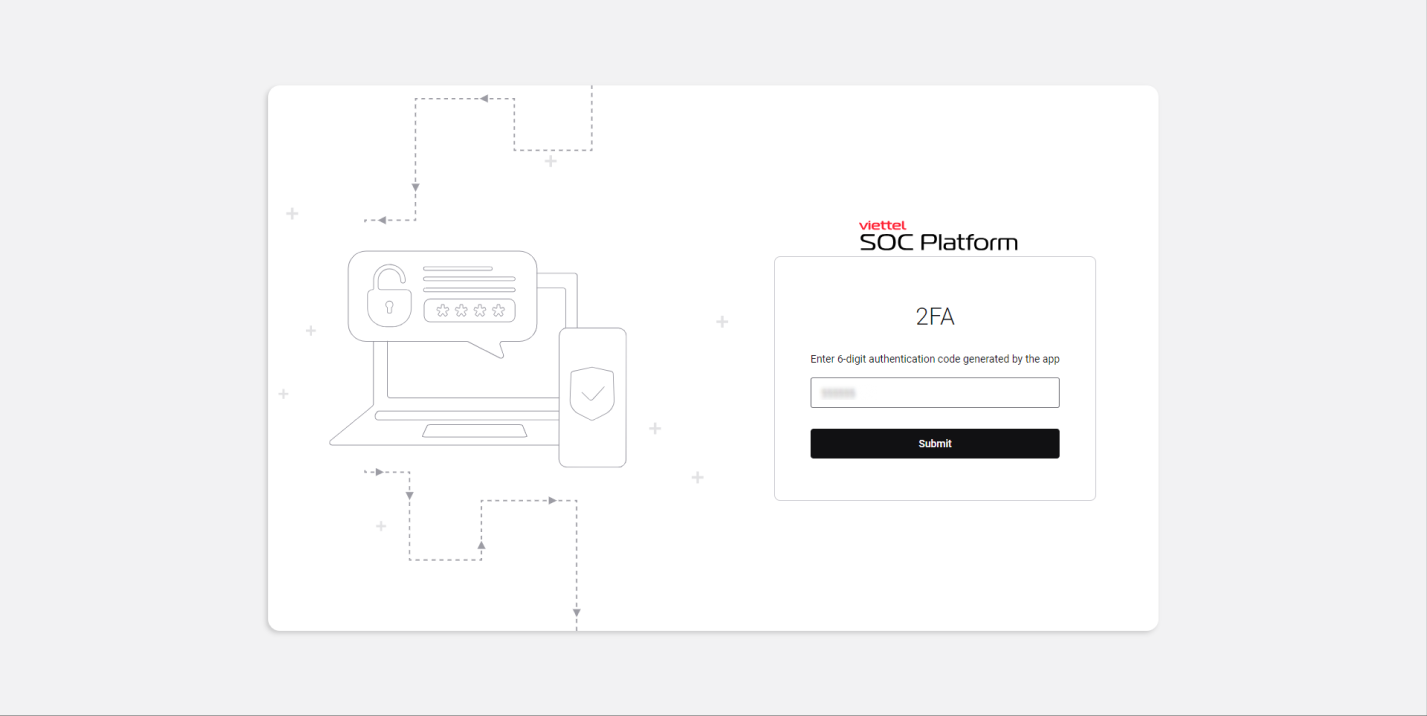
Step 4: Users need to enter the TOTP from the app that scanned the QR code. Then, click the Submit button to access the system. Users will be redirected to the Service Management screen after successful login.
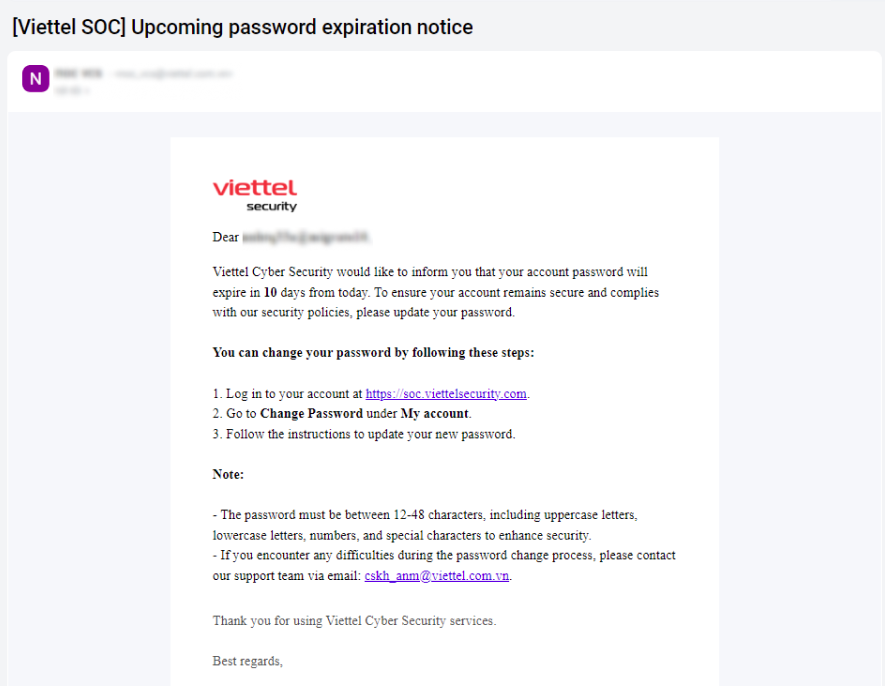
Password Expiration Notice:
- To ensure user security, passwords are valid for 90 days from the last password change.
- The system will send an email notification to users reminding them to change their password.
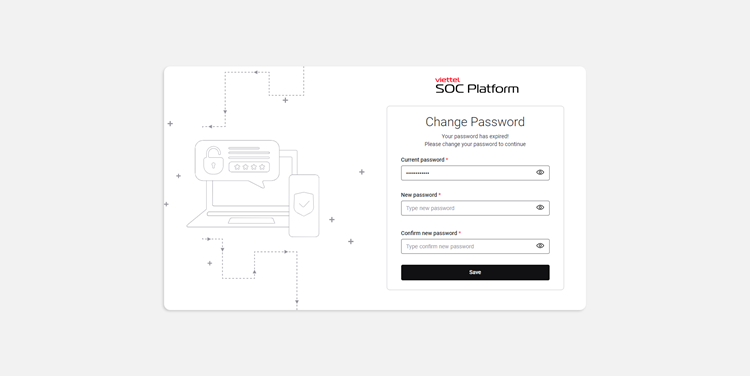
- If a user logs in with an expired password, they will be redirected to the Change password screen. Users must enter a new password according to system requirements. After successfully changing the password, users will need to enter the TOTP to log in to the system.
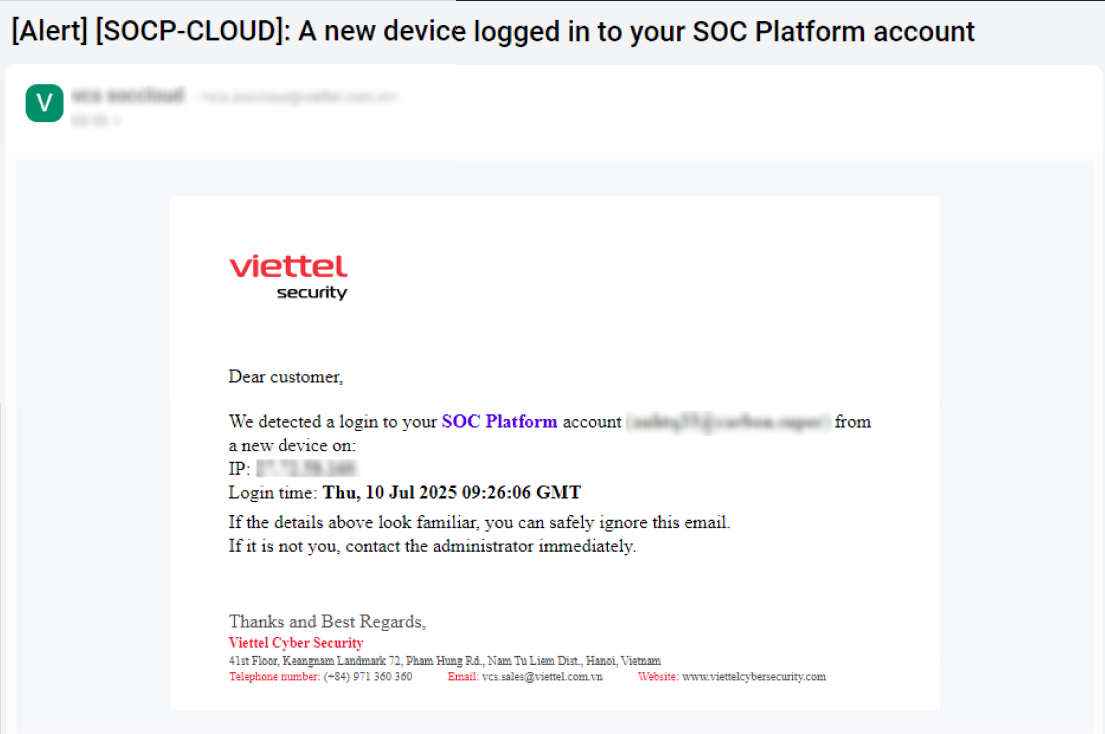
New Device Login Alert:
- To help users promptly identify any unauthorized login attempts to their account, the system will automatically send an email notification to the user's registered email address when their account is accessed on the SOC Platform from a new device.
Password Recovery Support
The Forgot password feature allows users to regain access to the SOC Platform. Follow the steps below:
Step 1: Go to: https://soc.viettelsecurity.com/
On the Login screen, click the link "Forgot your password?"
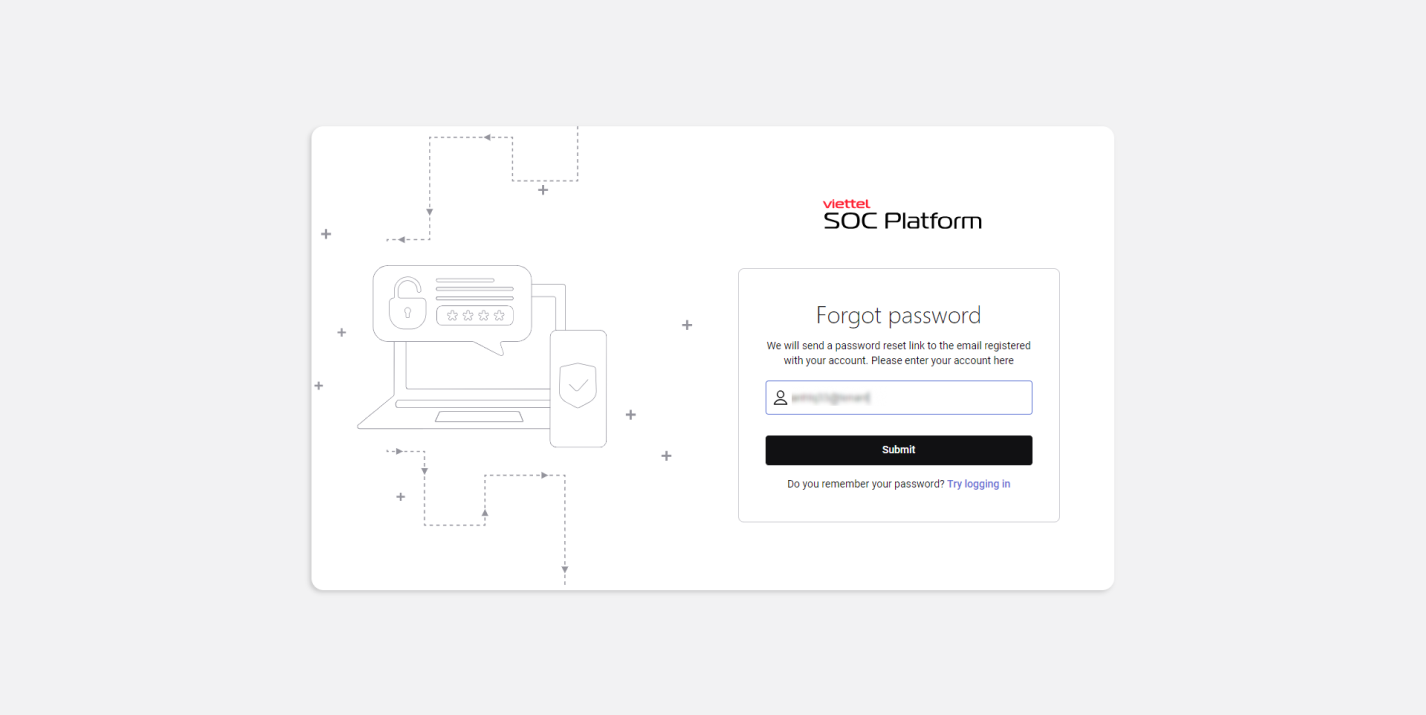
Step 2: Enter your username in the format username@tenantId, then click the Submit button.
The system will send an email containing a Reset password link to the user’s registered email address. Clicking the link will redirect the user to the password reset screen.
Step 3: Enter a new password following the system’s requirements. After successfully changing the password, the user can log in and use the system as normal.